Import from Toggl Track
Moving from Toggl Track? Migrate projects, clients, tasks, tags, people and every time entry in the background. Only the workspace owner and admins can run an import.
Step by step
It runs in the background, so you can close the page.
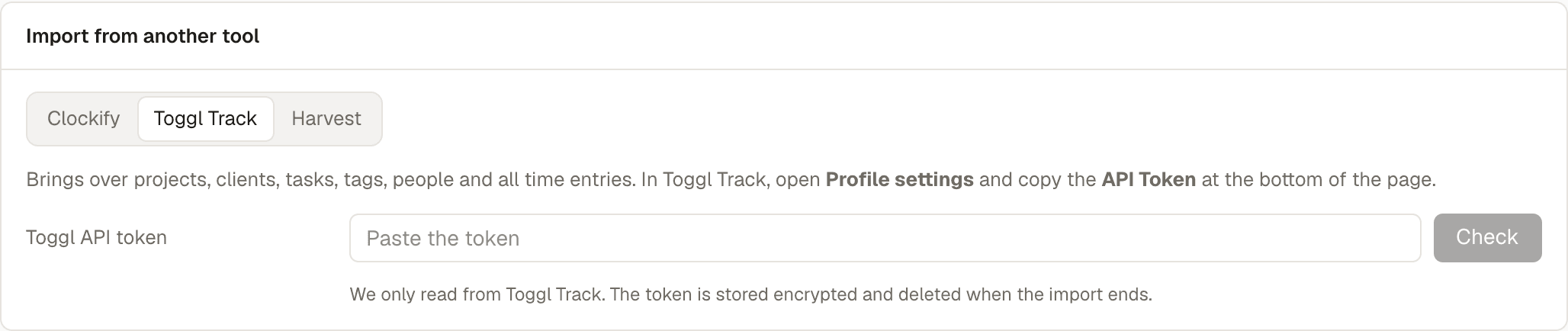
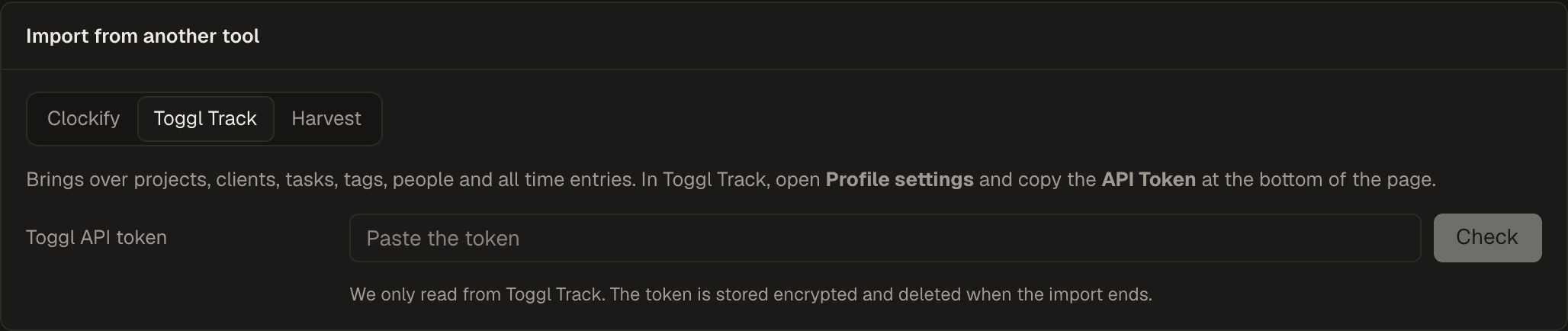
- In Toggl Track, open Profile settings and copy the API Token at the bottom of the page. Use the token of a Toggl workspace admin, so the import sees the whole team.
- In TempusLog, open Settings, find Import from another tool, choose Toggl Track, paste the token and press Check.
- Check the preview: the Toggl workspace (pick one if you have several), how many projects, clients, tags and people we found, and who isn't on your team yet.
- Optional: pick Entries from to import only recent time. Leave it empty to import everything.
- Press Start import. You can leave the page; we email you when it is done.
Good to know
- Safe to run again. A second run adds only what is new. Nothing gets duplicated.
- Nobody gets an email. People from Toggl are added to your team without an invite. Their time shows up right away, and you invite them from Team when you are ready.
- Deactivated people and invites nobody accepted come in as inactive, so old reports still add up.
- Toggl limits its API per hour. On Toggl's free plan only a few requests an hour are allowed, so a long history imports in hourly batches. Paid Toggl plans go faster. Either way it finishes on its own.
- Running timers are not imported. Stop them in Toggl first if you want them.
- The new Toggl app (Toggl Focus) has no public API yet, so it can't be imported. Toggl Track workspaces work.
- Your token stays safe. We only read from Toggl. The token is stored encrypted and deleted when the import ends. Rates are saved for later, for the paid Company plan.
Stuck? Email contact@mile.dev and we will help you move. Still deciding? See why teams switch from Toggl and TempusLog vs Toggl Track. Also moving from Clockify or Harvest? See Import from Clockify and Import from Harvest.
Ready to move?
Create a free account, then run the import from Settings.